


Universal TV Remote Control
3.965.00 Reviews
App Specs
- Version
- 1.9.5
- Updated On
- License
- Free
- Downloads
- 5,000,000+
- Developer
- Galixo.AI - Super TopVPN PROXY, MUSIC PLAYER
- Categories
- House & Home
- Platform
- Android
Screenshots
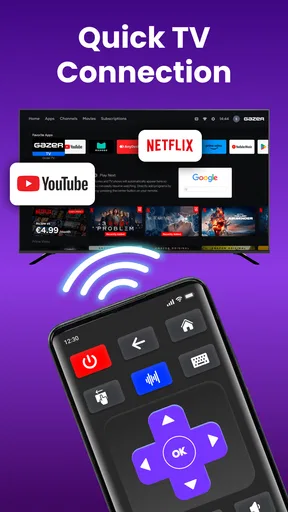
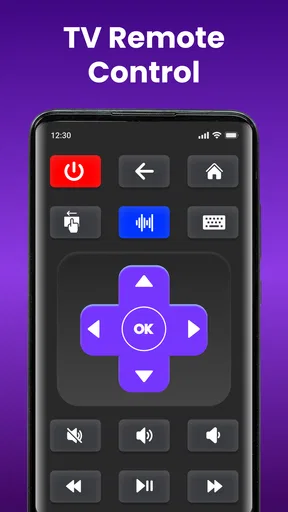
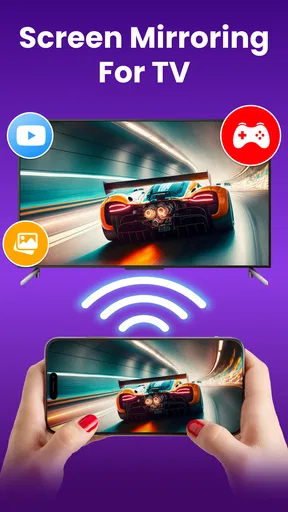
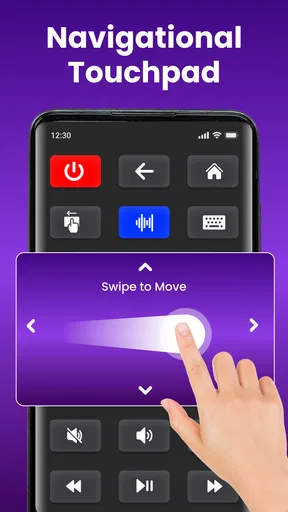
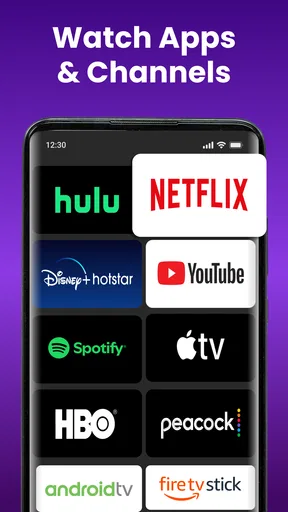
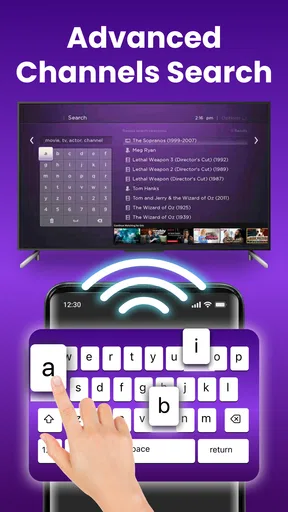
 Analysis by AppCompare
I think the best way to approach Universal TV Remote Control is as a possible backup for the actual remote, not a guaranteed replacement for every controller in the house. It is a free remote-control app in the House & Home category, developed by Galixo.AI - Super TopVPN PROXY, MUSIC PLAYER. Its basic idea is straightforward: use a phone to send commands to a TV, either through Wi-Fi or infrared where the phone supports it. That can be useful when the physical remote has gone missing, but the connection method and your particular setup make a real difference.
What to expect before you install
The app is aimed at ordinary TV control rather than managing an entire smart home. It may suit someone who mainly wants to handle everyday actions, such as changing channels or adjusting volume, without searching for a misplaced remote. Its reach is broader than a single connection style, but that does not mean every phone can use both methods. In practice, the first question is whether your phone and TV can communicate through a route the app supports.
That distinction is worth keeping in mind if you are choosing between this app and the remote-control app made by your TV’s manufacturer. A manufacturer’s app may be the more predictable choice for a household built around one brand or a particular smart-TV platform. This app’s appeal is its attempt to serve as a more general-purpose controller, including infrared signals as well as Wi-Fi. I would try it when I want a convenient second option, while keeping the original remote nearby until I know the pairing works reliably.
Making the first setup less frustrating
After installing it, start by checking which connection route makes sense for your phone. Wi-Fi is the relevant path when the TV can be reached over the home network; infrared depends on the phone having an IR blaster. A phone without that hardware cannot send infrared commands just because the app offers an IR option, so do not spend time trying to make that route work if the handset lacks the necessary component.
For Wi-Fi pairing, I would begin with the phone and TV connected to the same home network, then follow the app’s on-screen pairing steps. If the television does not appear or respond, check the network connection on both devices before repeatedly tapping controls. A guest network or a setup in which devices cannot see one another may get in the way. For infrared, point the phone toward the TV and test a basic command from a sensible distance; a blocked sensor or an awkward angle can make a working connection seem broken.
The app is free to install, though in-app purchases are offered, with listed items ranging from $3.99 to $29.99. I would treat that as a reason to check what is included before buying anything rather than assuming every option is free. It is rated for Everyone, and it has an average rating of 3.9 from around 7,100 ratings, with more than 5 million installs. Those figures suggest plenty of people have tried it, but they do not tell me whether it will match a particular television or network.
Getting Started with Universal TV Remote Control
First things first, downloading the Universal TV Remote Control app is a breeze. Available on both Android and iOS, you can quickly find it on the App Store or Google Play. After a swift installation, the app is ready to go. You don't need to be a tech wizard to set it up, which is great news for those who, like me, sometimes struggle with new technology.
Worth Reading Before You Choose

EA SPORTS FC Mobile 26 Is a Bigger Football Game, but It Takes Time

Flipboard Shows What News Apps Must Do Beyond the Feed

Switching to Android Auto Means Rethinking Your Driving Routine

Google Calendar Makes a Crowded Week Easier to Manage

Ludo King Makes the Most of the Minutes Between Plans

Baby Panda World Brings Quick Play to Modern Phones, but Its Game Library Feels Busy
Once installed, the app guides you through a simple pairing process. You can connect it to your TV via Wi-Fi or IR blaster if your smartphone supports it. The app supports a wide array of TV brands, which means you’re likely covered no matter what kind of screen you have at home. I was pleasantly surprised to find my slightly older model was compatible without a hitch.
First success: test one useful command
Rather than judging the connection by whether every button works immediately, I would start with one clear test: turn the volume down by a single step, then try another basic action you use often. If a command succeeds, check whether it remains reliable from the spot where you usually sit. A successful initial tap is encouraging; consistent response from your normal viewing position is what makes the app useful day to day.
There is also a practical way to avoid confusion when the household has more than one screen. Give each saved remote a name that identifies its room or TV, if the app’s setup allows you to do so, and test the intended device before relying on it. A remote that controls the living-room television is not much help when you are standing in front of another set. This small habit can prevent accidental commands and save time when switching between devices.
Features That Stand Out
The app's interface is clean and intuitive. You’re greeted with a digital replica of a remote control that’s easy to navigate. The buttons are clearly labeled and spaced out, so no misclicks here. One feature I found particularly nifty was the voice command functionality. Have you ever wanted to change the channel just by speaking? Now you can. Just tap the mic icon and tell your TV what you want.
Another cool feature is the ability to create custom remotes for different devices. If you’re juggling multiple gadgets, this app lets you switch between them with ease. Plus, you can customize the layout to prioritize the buttons you use most frequently. It’s like having a personal remote tailor in your pocket.
Where a phone remote helps—and where it doesn’t
A believable everyday win is settling in for a film and realizing the remote has slipped between cushions. If the phone is already beside you, opening a controller and adjusting the volume can be quicker than pausing everything to search the room. The same convenience can help when you are tidying up, carrying something, or temporarily using a TV whose physical remote is shared by several people. It is a small problem-solver, not a reason to throw away working hardware.
Touch controls also have a trade-off. A conventional remote lets you feel the buttons without looking, which is better when the room is dark or you want to make a quick adjustment while watching. A phone screen asks for attention and can be less comfortable for repeated channel surfing. I would use the app for occasional commands or as a spare, but prefer tactile controls for long viewing sessions where I am constantly navigating.
There is another useful distinction between controlling a TV and controlling every device connected to it. A universal TV remote may handle the television’s own functions, but a receiver, streaming box, or sound system can have its own commands and control requirements. If your routine depends on several pieces of equipment, test the exact actions you need instead of assuming that one phone interface will replace every remote on the coffee table.
Performance and Reliability
Now, let’s talk about performance. During my time using the app, the response time was impressive. There was minimal lag when changing channels or adjusting the volume, making it feel almost like the real deal. Of course, performance can vary depending on your Wi-Fi connection, but in a stable environment, it’s smooth sailing.
As with any app, reliability is key. I found the Universal TV Remote Control to be quite dependable. It rarely crashed, and updates were seamless. It’s one of those apps that quietly works in the background, ready whenever you need it. Just remember to keep your phone charged, or you might find yourself back to square one, hunting for that physical remote.
Common snags and sensible workarounds
If the TV does not respond, first identify whether you are trying Wi-Fi or infrared; troubleshooting the wrong route wastes time. With Wi-Fi, confirm that both devices are on a network that allows them to communicate, then repeat the pairing process if needed. With infrared, check that the phone actually has an IR blaster, that you are aiming toward the TV, and that nothing is blocking the signal. These checks are more useful than repeatedly pressing buttons and hoping for a different result.
If only some controls work, treat that as a compatibility limitation rather than proof that the whole app is useless. Keep the physical remote for settings or less common functions that the phone controller does not handle as expected. I would also avoid making the app the only control option for a TV used by several people until each person has confirmed that the phone-based setup is convenient for them.
The app’s current version is 1.9.3, and it runs on Android 8.0 or later. That makes device compatibility worth checking before installing, especially if you use an older phone. The app can be a poor fit if the phone has no IR hardware and the TV cannot be controlled over Wi-Fi, if your network keeps devices isolated, or if you simply prefer physical buttons. In those cases, the manufacturer’s own app or the original remote may be the more dependable choice.
Is It Worth It?
So, should you give the Universal TV Remote Control app a shot? If you’re like me and prone to losing remotes, it’s a no-brainer. It’s convenient, easy to use, and packed with features that make it more than just a gimmick. It’s a practical solution to a common problem, and who doesn’t love that?
On the flip side, if you’re someone who prefers tactile buttons or has a complex home theater setup, you might find the app lacking in some areas. However, for everyday TV viewing, it’s a handy tool to have. Plus, it’s free to download, so there’s little risk in trying it out for yourself.
Who should keep it on their phone?
I would recommend trying it if you want a backup for a television you use regularly, especially if the remote tends to wander or you want to control the set from your phone. It is also a reasonable option for someone who wants to test phone control before buying a replacement remote. The key is to confirm your connection method and the particular commands you rely on before treating it as part of your everyday routine.
I would skip it as a complete replacement if you depend on blind, tactile operation, need one controller to coordinate a complicated collection of home-theater equipment, or cannot establish a reliable path between the phone and television. A dedicated replacement remote is often simpler in those circumstances. For a single TV and occasional adjustments, though, the convenience can outweigh the screen-based controls’ limitations.
In conclusion, the Universal TV Remote Control app is a smart addition to your smartphone arsenal. It’s not going to replace every remote in your house, but it’s a solid backup plan that’s always within reach. Give it a shot and see if it clicks for you, just like it did for me.
Pros
- User-friendly interface for quick navigation.
- Compatible with most TV brands.
- No setup required; instant connection.
- Customizable remote layout options.
- Free to download with basic features.
Cons
- Contains ads that can be intrusive.
- May not support older TV models.
- Requires stable Wi-Fi connection.
- In-app purchases for premium features.
- Limited support for smart home devices.
FAQs for Universal TV Remote Control
What devices are compatible with the Universal TV Remote Control app?
The Universal TV Remote Control app is designed to work with a wide range of smart TVs and devices, including popular brands like Samsung, LG, Sony, and more. It typically requires your smartphone to be on the same Wi-Fi network as your TV for seamless connectivity. Always check the app's compatibility list for specific device requirements.
How do I set up the Universal TV Remote Control app on my device?
Setting up the Universal TV Remote Control app is straightforward. After downloading, ensure your phone is connected to the same Wi-Fi network as your TV. Open the app, select your TV brand, and follow the on-screen instructions to pair the devices. Many TVs will require you to confirm the connection on the TV screen.
Is the Universal TV Remote Control app free to use?
The app is generally available for free download, but it may offer in-app purchases or premium features. These might include removing ads, accessing additional remote functions, or enhancing compatibility with more devices. Always review the pricing details in the app store before downloading.
What features does the Universal TV Remote Control app offer?
The app typically provides basic remote functions like volume control, channel navigation, and power on/off. Advanced features may include voice commands, a customizable interface, and the ability to use your phone's keyboard for quicker search inputs. Check the app description for a comprehensive list of features.
What should I do if the Universal TV Remote Control app isn't working?
If the app isn't functioning, first ensure that both your phone and TV are on the same Wi-Fi network. Restart the app and your devices to resolve connectivity issues. Check for updates in the app store, as newer versions might fix bugs. If problems persist, consult the app's support section for troubleshooting tips.


